Introduction to the cisst libraries
A collection of libraries to perform functions like
Basic linear algebra calculations (
cisstVector)Numerical methods, like SVD, Point-cloud registration, etc. (
cisstNumerical)Real-time computer vision (
cisstStereoVision)Handling various devices like trackers, haptic devices, etc. (SAW components, previously
cisstDevices)Robot control (
cisstRobot)Communication through networks (
cisstMultiTask,cisstOSAbstraction,cisstStereoVision)
Object-oriented C++ API
Some parts of the library are heavily templated C++ templates (Wikipedia)
Open source, available through an online github repository
Platform independent (regularly tested on various Windows, Linux, and Mac OS X versions)
Uses CMake to create compiler/platform dependent projects from source
Windows specific pre-requisites
Microsoft Visual Studio
Integrated Development Environment (Wikipedia IDE) for Microsoft Windows
Contains C++ compiler and building tools
Versions
VS2008(9.0) andVS2010(10.0) are fully supported (VS2005(8.0) might also work)Get a legal copy from your lab administrator
Tools and external dependencies
Download the CMake binary package from cmake.org and install it
ZLIB, JPEG and PNG dependencies (optional)
Download the ZLIB, JPEG and PNG support libraries (zip)
Decompress the zip file into a folder called
gnuwin32inside your code dependencies folder (if you have one)Add your
[dependencies]\gnuwin32\binfolder into the$PATH(Control Panel > System > Advanced > Environment variables) as the first entryYou will need to restart the computer for the
$PATHchanges to take effect
OpenCV (optional)
Download the binary installer and install it to the default location
In CMake, point to the folder containing the file
OpenCVConfig.cmake
Linux specific pre-requisites
The following instructions apply to Ubuntu 9.04 or newer distributions; it is recommended that you keep your OS version up-to-date
Tools and external dependencies
Make sure that the latest version of the following software packages (and all of their dependencies) are installed using Synaptic Package Manager (Wikipedia) (System > Administration > Synaptic Package Manager)
If you don’t have synaptic installed,
sudo apt-get install synaptic.packages
.
.
.
subversion
libcv +dev
zlib +dev
gcc
cmake
libhighgui +dev
libjpeg +dev
g++
libx11 +dev
libcvaux +dev
libpng +dev
libxv +dev
libdc1394 +dev
libqt4 +dev
qt-creator
Optional: Qt Creator as your IDE (Wikipedia)
Mac OS X specific pre-requisites
Apple Xcode
Integrated Development Environment (IDE) (see on Wikipedia) for Apple platforms
Contains C++ compiler and building tools
Xcode is available from the Apple AppStore
Tools and external dependencies
In the followings we will assume that Mac OS X users have MacPorts installed
Once installed, enter the following commands in the terminal:
sudo port selfupdate
sudo port upgrade outdated
sudo port install opencv
sudo port install subversion
sudo port install libpng
sudo port install jpeg
sudo port cleanup all
Please note: This installation process may take several hours to complete. If you need to interrupt the process, you may do that any time by pressing
CTRL+C. In order to resume, just enter the last command that you previously terminated.After all the above commands finish successfully, you will have all the external dependencies available on your computer that are required for the
cisstStereoVisiontutorial. However, you might need additional dependencies in the future to use with other cisst libraries.
Getting the source code
Introduction to CMake
Tool to create platform-specific compiler projects for platform-independent source code
Supports virtually all major compilers and [ IDEs (Wikipedia)](http://en.wikipedia.org/wiki/Integrated_development_environment, such as MS Visual C++, XCode or Makefile)
Windows
Download as binary installer from cmake.org
Run it from the Start Menu
All GUI based, no terminal commands required
Linux, Mac OS X
Get it using
apt-getor Synaptic on LinuxGet it using MacPorts on Mac OS X (see above):
sudo port install cmakeRequires a simple terminal command to first create the project
Already existing projects are managed in the textual GUI similar to the Windows version
Note: Command name is
ccmake(notcake) for the text/curse based interface,cmake-guifor a GUI.
Separating the source and build trees
In order to keep the cisst source code management simple, it is highly recommended that the build (compiler specific project) directories are created on the same level as the source code directory.
In the following example the directory
cisstwas created inside some maincodedirectory, and insidecisstthere is a singlesourcedirectory for storing the source code and three differentbuild-xxxdirectories for storing the compiler/platform specific projects for the single source code:
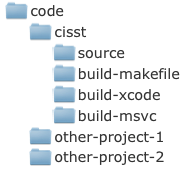
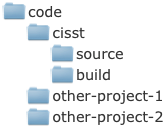
However, for most users who use only one development platform, a single
builddirectory will suffice:
Creating compiler specific projects using CMake
Windows
Visual Studio
Open CMake from the Start Menu
Set the location of your
sourcedirectorySet the location of your
builddirectory that you want to use for the Visual Studio projectClick Configure
Select your compiler from the list, and wait until your CISST settings show up
Check
CISST_cisstStereoVisionCheck
CISST_BUILD_EXAMPLESClick Configure, and wait until done
Enable Advanced mode (just under the
builddirectory field)Un-check all
CISST_*_EXAMPLESbut keepCISST_cisstStereoVision_EXAMPLESchecked (we need only the stereo vision examples for this tutorial)Click Configure, and wait until done
Scroll down in the list to find the options called
CISST_SVL_HAS_*CISST_SVL_HAS_DIRECTSHOWshould appear to be already checkedIf you have OpenCV installed on your computer, check
CISST_SVL_HAS_OPENCV2. You might need to manually setOpenCV_DIRin CMake. This should point to the directory that contains the file OpenCVConfig.cmake.If you have the ‘’ZLIB+JPEG+PNG’’ dependencies (see the paragraph ‘’Windows specific pre-requisites’’) on your computer: a. Check
CISST_SVL_HAS_JPEG,CISST_SVL_HAS_PNGandCISST_SVL_HAS_ZLIBa. Click Configure, and wait until an error message shows up indicating that CMake failed to automatically find those dependencies a. Dismiss the error message dialog box a. Scroll down in the list and set the following options:JPEG_INCLUDE_DIR = [dependencies]\gnuwin32\include JPEG_LIBRARY = [dependencies]\gnuwin32\lib\jpeg.lib
Click Configure, and wait until done a. CMake should automatically be able to find all your ZLIB+JPEG+PNG dependencies; the newly found locations will show up on top of the list in red a. Click Configure, and wait until done
You’re all set: click Generate to create the Visual Studio “solution” (
.slnfile), then close CMake.
Linux
makefile (no IDE)
Open a terminal
Change to the
builddirectoryEnter the following command:
ccmake ../sourcePress
cto ConfigureSet
CISST_cisstStereoVisiontoONSet
CISST_BUILD_EXAMPLEStoONPress
cto Configure, and wait until donePress
tto enable Advanced modeSet all
CISST_*_EXAMPLEStoOFFbut keepCISST_cisstStereoVision_EXAMPLESON(we need only the stereo vision examples for this tutorial)Make sure
CISST_HAS_QTis set toOFF(this is not needed for this tutorial)Press
cto Configure, and wait until done (CMake will automatically find all the dependencies for you)You’re all set: press
gto Generate the makefile project, then pressqto quit CMake.
Qt Creator
Create a makefile project, as described above
Open Qt Creator application (Applications > Programming > Qt Creator)
In Qt Creator: select File > Open File or Project…
Navigate to your
sourcedirectory and select theCMakeLists.txtfile to openIn the pop-up CMake Wizard window set your
builddirectory, then click NextOn the next screen of the ‘CMake Wizard click Run CMake, and wait until done
You’re all set: click Finish to create the Qt Creator project
Mac OS X
Xcode
Open a terminal
Change to the
builddirectoryEnter the following command:
ccmake -G Xcode ../source
Press
cto ConfigureSet
CISST_cisstStereoVisiontoONSet
CISST_BUILD_EXAMPLEStoONPress
cto Configure, and wait until donePress
tto enable Advanced modeSet all
CISST_*_EXAMPLEStoOFFbut keepCISST_cisstStereoVision_EXAMPLESON(we need only the stereo vision examples for this tutorial)Press
cto Configure, and wait until done (CMake will automatically find all the dependencies for you)You’re all set: press
gto Generate the Xcode project, then pressqto quit CMake.
makefile (no IDE) - same as for Xcode, except launch with the command line:
ccmake ../source
Building CISST
Windows
Visual Studio
Open Visual Studio application in the Start Menu
In Visual Studio: select File > Open > Project``/``Solution…
Select the file
[build]\cisst.slnto open (orcisst-saw.slnif you decided to have cisst and SAW)Select Build > Build Solution from the menu bar to start compilation
Linux
makefile
Open a terminal
Change to your
builddirectoryCompilation
For single-thread compilation, enter the command:
makeFor multi-thread compilation, enter the command (where
xis the number of threads:2,4,8, etc.):make -jx
Qt Creator
Make sure that the project was created by following the instructions in paragraph Creating compiler specific projects using CMake
Open Qt Creator application (Applications > Programming > Qt Creator)
In Qt Creator: select File > Open File or Project…
Navigate to your
sourcedirectory and select theCMakeLists.txtfile to openSelect Build > Build All from the menu bar to start compilation
Mac OS X
Xcode
Open Xcode application
In Xcode: select File > Open…
Select the file
[build]\cisst.xcodeprojto open (orcisst-saw.xcodeproj)Select Build > Build from the menu bar to start compilation
makefile - same as Linux makefile